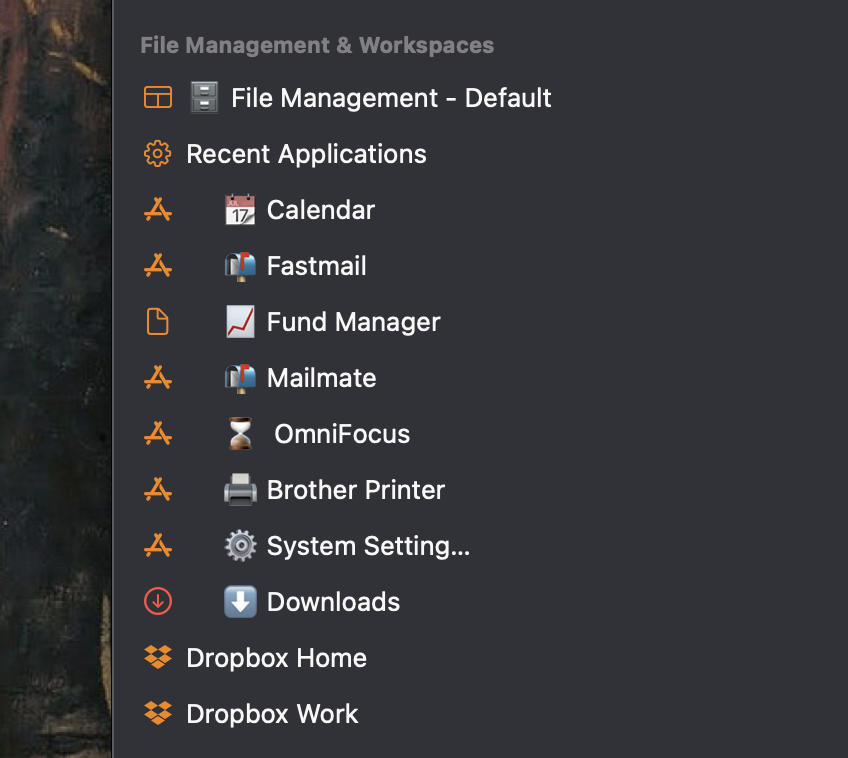
The Forklift sidebar allows you to drag a very wide range of items/files to the sidebar including alias’s and symlinks.
You can create groups of favorites which you can name as you please which facilitates readability and workflow.
You can create workspaces, ie a pre formatted panel layout with specified open tabs.
Objects/item/files placed in the sidebar can be renamed without changing the name in the file system. To elaborate, and in contrast, if you change the name of a file in the Finder sidebar, this also is changed in the actual file.
This combination of features enable a very useful sidebar. The renaming system enables some creativity and also some practical benefits. Remote connections can be renamed to add clarity to the connection source. For example, multiple Dropbox accounts can be renamed in a meaningful way.
Some observers have complained that they are unable to change the icons on the far left of the sidebar, but the Forklift renaming ability offers some ability to create a layout of the users liking as the above example illustrates.
I am not a power user. I wonder if any other users have innovative ways they use the Forklift sidebar?
Silly question: how do I eliminate items from the favorites and workspaces sections? I see how to add items/folders, but can not see how to delete. This should be an easy thing to do and I’m almost wondering if a have a faulty copy of F4.
I’ve tried right-clicking to see an option to delete: no luck. And a few other things. The rest of the app seems just fine and a joy to use. Why is it difficult to edit/remove folders from a workspace or favorites area?
Thanks for your response. I’m on Ventura 13.5.2 (22G91) and there is no 4.0.1 option for me, only 4.0.
Just to be super clear, when I think right-click I do control-click. I’ll assume you are doing the same, or are you invoking right-click in some other way?
Maybe I’ll just need to upgrade to Sonoma. If so that’s not a big issue, I’ll wait a few days. But still I want to make sure it really doesn’t work on Ventura first. (I’m going to upgrade to Sonoma anyways … just trying to figure out this quirk.)
Using Ventura. I tried control-click and it doesn’t work. Using right-click assigned to a mouse button or a trackpad gesture and it does work(Delete/Edit/Open in New Tab).
Ellis: Thanks sooo much! I never use trackpad gestures much. Easy to look up, and as you noted, the touchpad version of right-click works just fine! I really appreciate your help on this issue.