I have a MacBook Pro M1 with 512Gb of storage. I normally have over 200Gb available. But sometimes, without warning and for no apparent reason, that available storage will plummet to less than 10Gb, and apps will tell me there’s not enough space to save data. Rebooting fixes it, but I can’t seem to figure out what triggers it. Ideas?
This could be explained if you only have 8GB RAM and you are using apps that need much more. When you run out of RAM, it will start using the disk as a swap file and this will grow depending on how much virtual RAM you need. If you have a memory leak in any app, then this would mean that the swapfile could grow and fill the disk.
The solutions is to only use 1-2 apps at a time and to avoid apps that use a lot of RAM such as Electron/web apps (Chrome, 1Password, Spotify, Obsidian, Notion etc.)
Interesting. I have 16 gigs. Does that change things? Losing over 200 gigs suddenly (it’s never gradual; I’ve been keeping the Get Info window for the drive open to monitor it) seems like a lot, and I would think the growing swap file would be a slower leak.
The quick disk usage could be explained by poorly coded software having memory leaks. That would fill the disk in seconds and would not be gradual.
I think much depends on the type of app you’re using. If you’re using native apps then 16GB should be plenty to multitask. but web apps tend to be super inefficient and use gigabytes of RAM even when idle.
2 Likes
I use Obsidian all the time and Chrome only when I have to. I also have 1Password loaded. Lots of browser-native apps in Safari. However, my Mac Studio has 32Gb of RAM and no problem. Maybe the additional RAM overhead is the difference?
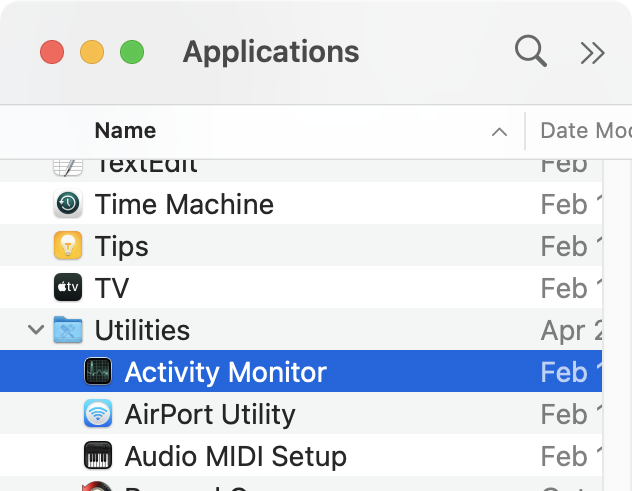
You might also use Activity Monitor in Utilities to monitor which apps are doing what.
–
JJW
1 Like
This seems suspiciously similar to a problem I had back a ways:
I never landed on a “solution”, although it’s been awhile since it’s happened. I wound up setting a Keyboard Maestro macro to let me know when the free disk space drops below a certain threshold, just so I could either address the issue (if known) or reboot (if it’s the “phantom space”).
Glen Fleishman recently released a nice (free) utitlity for that:
1 Like
It’s surprisingly no one has mentioned DaisyDisk or Grand Perspective so late into this thread.
When you get the warning, I recommend using Daisy Disk ($5-10) or Grand Perspective (free) to find out where the space is going.
It’s most likely has to do with iCloud archive and the setting of keeping files on disk.
Edit: aaaaand I just saw your post about iCloud issues. rofl. Strong suspicion it’s icloud backups taking up spacew.
1 Like
In my linked post (above), you’ll see that at least in my case, DaisyDisk provided no useful answers. It yielded that the space was being used, but not what was using the space.
This happened to me a few weeks ago. After running DaisyDisk I tracked it down to a virtual environment that Claude was working in - I had tasked Claude with some complex data analysis, and while working on it, the virtual environment had grown to over 260Gb - more than half of my Mac’s storage. I forget how whether it resolved itself after the task was completed or whether I had to delete it myself.
So if you are using AI to work on a complex task (locally), this could be an explanation.
2 Likes
Not always the answer, but if you suspect some app is getting grabby about using available space for work files, then quit all and restart is often effective in releasing the space.
Katie
You could use DaisyDisk to find the offending files, then Sloth app to find out which app is using it
1 Like
I guess that’s what I’m saying. There is a very real scenario where Daisy Disk can’t even identify names of files. It just tells you that space is being used, with no further explanation. Even scanning as administrator.
I’ve had something like that happen two or three times. It was always Time Machine snapshots accumulating. Here’s what a Google Search/AI turned up: Google Search

I recently installed Arq. I haven’t had a snapshot problem, at least not yet. There is a new version just out, 7.42.1 that maybe would help.
I’m not sure this is an issue (except that I need sufficient free space to make a backup):
- Arq probably makes a snapshot to have a stable base to back up
- Arq deletes the snapshot when that backup has finished
OK
(I need 20 characters to post.)
When this happens to me (not quite as extreme - it‘s been a long time since I had 200GB free - but same in principle - I ask Codex or Claude Code to figure out why I‘m low on disk space. It doesn’t always find a good answer but what I learned is that macOS is sometimes rather slow to delete time machine snapshots or even diskspace that technically is already freed but macOS for some reason keeps hold of it for some longer (Daisy disk shows this as hidden or purgeable space).