Hey all. I haven’t posted in quite awhile. I upgraded to Sonoma and keep getting this screen when I try to open Photos. Is this a common issue? What should I do? If I move the library it won’t sync anymore and that is not what I want. Help!
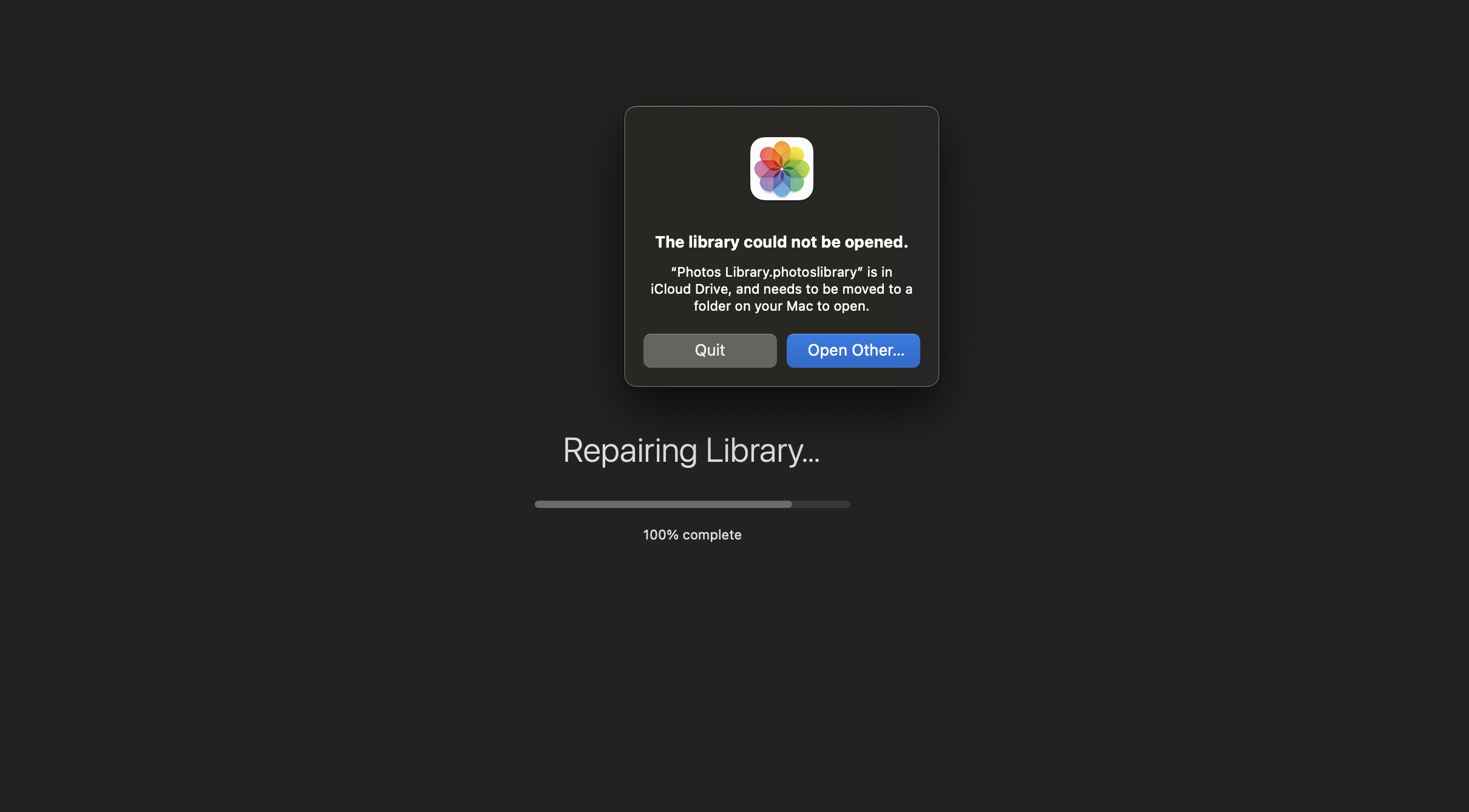
Why are you keeping the Photo Library file in iCloud Drive to begin with? That’s not the right approach to achieve syncing – it is not recommended to store photo library databases in cloud folders. This can actually damage the library database if syncing issues occur as it was not designed to be used like that.
Move it to your local files as suggested, then turn on iCloud Photos on all devices that you want the library to sync to.
1 Like
I have missed this little detail (the actual library being stored on the iCloud drive). Like @dario already has hinted: not a good idea.
The Apple way (“Turn on iCloud Photos”):
It is absolutely no problem to backup your actual library using whatever solution there is out there, but using literally the same library on multiple Macs for sure is no good idea. Apparently Apple is enforcing a change of behavior with Sonoma to prevent issues in the future: no more storing the actual library files on iCloud drive.
Do you have one or more than one Mac? If there are multiple Macs with this configuration, changing this scenario (switching to the Apple way, moving the library to a local place) can lead to “interesting” results. It is a good idea to start with one Mac with Photos not running on the second one and let Photos do its syncing thing (unfortunately this can take quite some time). When Photos is done with syncing, have a look at your photos: everything still ok? Then have a look at your second Mac. The library probably will be gone there (because you moved it somewhere else on the first Mac). It probably will populate itself from iCloud after being set up correctly. If you only are using one Mac, this should not be difficult.
1 Like
What I didn’t understand is how it got set up like this in the first place. I didn’t set it up like this originally. I have just gone with whatever the OS was set with from the beginning with Photos and it’s always just worked. I was confused why it was giving me this message since I had not ever changed anything. It makes sense the way you are explaining it. I’ve always used iCloud Photo sync. I was scared to move it out of iCloud and lose pics. I do have more than one Mac as well as our Apple TV which has access to the photo steam. Thanks for the info. I’m open to any other suggestions people may have. Thanks again!
It could be that you created a photo library stored in iCloud Drive by pure accident. You can have more than one photo library, but one of them needs to be the default system one that’s syncing via iCloud Photos. It could also be that you placed the file on your desktop or in the documents folder, and then at some point let iCloud Drive sync either of those to the cloud (which was offered as the default in some macOSes a while back). But I’m just guessing here.
In fact it’s great that this setup has worked well this far. The photo library is a package file (containing folders and pictures) but iCloud does not support differential sync so every time you made changes to the photo library it had lots of uploading and downloading to do as it had to upload whole files, plus it was uploading everything once more to the photo library in iCloud. You’ll get some space in the iCloud back as well when you remove the actual photo library file from Drive.
Try following the instructions provided above by Christian, let Macs sync the library one by one after you move it off the iCloud Drive, and you should be fine. Be patient as it’s sometimes slow to sync, or will pause syncing for no apparent reason, or when on battery (for laptops).
If you want to be sure you are not going to lose anything, you can just copy the library somewhere else as a backup first.
3 Likes
I have now moved the library to my Mac but it is still giving me the same message. Starting to get nervous over here.
I’ve looked and can not actually locate the library in iCloud. It’s in the Pictures folder on my Mac. I’m not sure what is going on.
So, it currently still gives me that warning dialog pictured above but the Photos Library is not and has not ever been stored on iCloud Drive, only synced with the Photos app. Why would my Mac tell me it was on iCloud if it really is not? That’s my confusion. What a headache. Thanks for your continued wisdom.
Does this happen on all of your Macs (you said you had more than one)?
Can you log in to icloud.com and make sure the Photos Library is nowhere to be found when browsing the files?
Can you check the Photos folder is not perhaps inside the Documents folder, and that you are not syncing the Documents folder to iCloud Drive (which was activated by default if not turned off in some macOS versions)?
Can you go to Manage Account Storage for the iCloud Drive and see how much documents and data there is? How large is your Photos Library?
Does this process of repairing the library happen every single time? Is it just on one Mac or on more than one Mac? Does the Photos app launch without that now or does it happen every time?
On your other Macs, if Photos does not repair the library when launched, can you try forcing repairing the library by pressing Cmd+Option when launching the Photos app?
I’m sort of out of ideas here but these are things I’d check in order to troubleshoot.