I thought this was a movie recommendation 
4 Likes
I upgraded to OS10, and to me the greater difficulty in switching between installed watch faces is largely a nonissue. The additional step of long-pressing the watch face to enter face-changing mode just takes an extra second (as @Caro said, above).
This doesn’t seem normal, I wonder if your watch is trying to run or connect to something and it’s draining power?
I’m on a S5 watch. My battery use hasn’t changed at all with this upgrade (though I’ve not changed watch faces - the only change I’ve made since the upgrade has been to set my widgets). I charged to 100% last night and slept with my watch on, and it’s at 82% this morning, which is roughly what it was doing before the upgrade (actually if anything it’s a little higher, but I don’t go to bed at a consistent time and suspect that accounts for the variation).
Thanks for the recommendation. Have just added Snoopy to my watch and it has cheered me up 
2 Likes
how would i check? I haven’t changed anything on the watch before or after the upgrade.
The Snoopy animation watch face is my new favorite. That is the best feature, IMO.
1 Like
Took delivery of my Apple Watch 9 this afternoon. Only made a few setup changes; basically choosing a watch face I liked rather than the default on and then changing the complications around it to the few that are important.
The one thing that has me stymied is turning OFF low power mode. I turned it on intending for it to last an hour or so but when that period ended there was nothing that lets me revert to normal battery mode. Now changed it to turn off low mode after a day but I really want some way to turn if off NOW.
It’s not 100% obvious.
To turn on:
- Press the “Action button” (I forget what they call it since it changed functions so many times, but the button on a regular watch that isn’t the crown) to open Control Centre.
- Tap the battery percentage.
- Tap Low Power Mode.
- Scroll to the bottom and choose Turn On or Turn On For… Choose a duration in the latter case.
- Press the “Action button” again to return to the watch face.
To turn off:
- Press the “Action button” to open Control Centre.
- Tap the battery percentage.
- Tap Low Power Mode On.
- Press the “Action button” twice to exit.
The trick is step 3 when turning off. It may not be obvious it’s a button, and even so what it would do.
Thanks.
Too right there.
I think I found my complication. Complicaitons that I added to the watch face are coloured orange, the default choice, and therefore do not alter with the Low Power setting. The real indicator is the re/yellow dot at the top middle of the face. A poor piece of UX design there I feel.
More and more of my preferred 3rd party apps are beginning to show up in widgets, so it appears it’s up to each developer to either add the capability or not. If you have an app that you’d like to have there, it might be worth reaching out to the developer to see if it’s in the works.
1 Like
Going from a 5 year old watch to a brand new one has made a world of difference in battery consumption. Seems to be about half the drain. But it still seems slow even with a much faster processor and 4x the memory. Now waiting for 10.1
I did even better than that: I finally took a dive into Shortcuts and created a custom widget for my Watch that opens the app, sets a focus for using the app, and then automatically turns off the focus 45 minutes later. I’m inordinately proud of myself and keep tapping the widget just to watch it work.
3 Likes
I have V1 Ultra. What I don’t like is that the dock is gone. It was nice having a button devoted to only my most used apps. It was easy enough to get to the settings by swiping up. The least Apple could have done was let the user make the choice of button function. I use the timer a lot, so I got around the problem by switching to the modular ultra watch face and adding timer as a function I actually like the new timer app better. There was a bug in the old timer on the ultra where it sometimes wouldn’t show the seconds. That’s fixed now. Hopefully once I get used to this version I will like it better.
This bugged me at first as well. However, I have discovered the grid view for applications (previously honeycomb view) now is a bit more controlled. I have moved all my regularly used apps to the top of the grid, now when I click the crown I can quick access all my regularly used apps
2 Likes
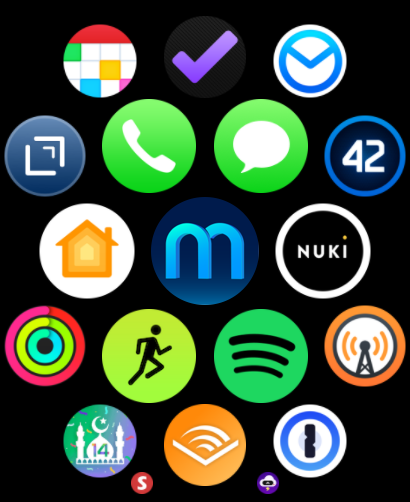
Did not know that was possible. Now that I do my most used apps will be moved to prominence rather than being buried in the mush.
Really getting p***ed off with the Watch OS10/iOS 17 Health app. Items leap about on the display which slows down use of the app. I would rather have an alphabetical list than the current “you just changed these items so everything gets moved” approach.
Today, I wasn’t able to find the total steps and walking distance for the past week on the watch. This was an easy task on watchOS < 10. Is this information gone?
It’s still there.
Just open the Activity app via widget or from the app list. When the app loads, you’ll notice there’s a vertical line of six dots at the upper right of the screen. You can scroll those using the Digital Crown; one of them (the fifth dot on my watch) shows the information you’re looking for.
Isn’t that just today’s steps?
Though I don’t recall the weekly ones on prior watchOS.