Yes — I missed the “past week” part of your post. 
Thanks! I’m going to try that out.
I don’t find it on the watch either. But the weekly summary is in the Health App on the iPhone. My Steps are under Summary, or just search for Steps.
I am amazed at how little I even use my watch. S9/OS10 and it might as well be a plastic hello kitty watch. I look at it to see what time it is… thats pretty much it. I envy people that have cool workflows on their wrist though.
I’m loving Watch OS 10. Yeah, it took a few days to learn the new ways of working, but now I am very happy. I’ve been able to delete 3 of the 6 watch faces I’d used in the past because now it’s easy to get to the app I want, either from the Siri stack or by reorganizing my grid view.
And I love that from the Activity complication in the dock I can easily see whether I’ve already reached my stand goal for the current hour. This used to be nearly impossible to figure out and now it’s very clear.
2 Likes
Yep, me too! After a few days enjoying Snoopy, I’m back wearing my Citizen Eco Drive 
My uses, in addition to the time and date, in case it sparks some ideas:
-
Enter Reminders with Siri by holding down the crown, then speaking:
- “Remind me at 7 pm to fill up my tires”
- “Remind me when I get to my Dad’s house to look for the book”
- “Add cantaloupe to Costco list”
-
Enter tasks in OmniFocus by same method:
- “Enter task in OmniFocus grant discovery extension for Acme case” (that puts it in my OF Inbox)
-
Learn the weather for an upcoming event when I’m away from a Google Nest Hub at home:
- “What’s the weather in Santa Monica at 8 pm tonight?”
-
Set timers by holding down the crown, then speaking:
- “Time 20 minutes”
-
Pay with credit cards using Apple Pay without having to take my phone out of my pocket, by double-clicking the action button
-
Sync my heart rate to our Peloton bike so I can see it on the bike’s screen when I work out
-
Enjoy switching among different watch faces, and between my two bands, to change my watch for different occasions
Edited to add:
-
Seeing who is texting me and responding with quick-replies, without taking my phone out of my pocket
-
Knowing someone is at my front door (and sometimes seeing them, depending on how well our Nest Hello doorbell is working) without taking my phone out of my pocket
3 Likes
It takes some getting used to. I keep pressing “Segment” when I try to stop a workout b/c muscle memory. Also, my battery life seems worse, anyone else experience that?
My Ultra v1 watch is running smoothly and the battery life is about the same as it was prior to the update. I do like the aesthetic improvements of some of the apps. I wonder if Apple is mainly concerned that their updates run well on the recent models of their watches.
A week after upgrading, I’ve noticed a consistent 10-15% additional battery drain during the day. (series 6)
That’s disappointing as I was aiming to try and run this for another year, but I don’t think it will cope. 
1 Like
Mostly liked this update until I went for a run this week. Then I discovered that they’ve got rid of the double click to switch between your two most recent apps feature. This is a real irritation. I often flit between Now Playing for adjusting my music and WorkOutDoors for routes and workout tracking while running. Until now I could do this without looking by double clicking the crown. Now that just brings up the app switcher, which is just awkward on the move. If you’re tired and sweaty at the back end of a long run, fiddling around poking at a really small screen is not a good experience.
1 Like
My S4 is in the same boat. I’d hoped to wait until the S10, but I don’t think I’ll make it.
Upgrading from a series 5 to ultra 2. I charged my watch yesterday at 5 am, have worn in without taking off and had 2 bike rides with cellular only and a run and still with 43% battery at 32 hours, so I’ll live with the negatives! Battery life is awesome.
2 Likes
That begged a question: “What are the negatives?” 
1 Like
I loved swiping between watch faces and hate having to hold it. I’m probably going to make a short cut to assign to the action button to bring up a selection of watch faces (if that’s something that I can figure out a shortcut for).
1 Like
Why not just setup focus modes
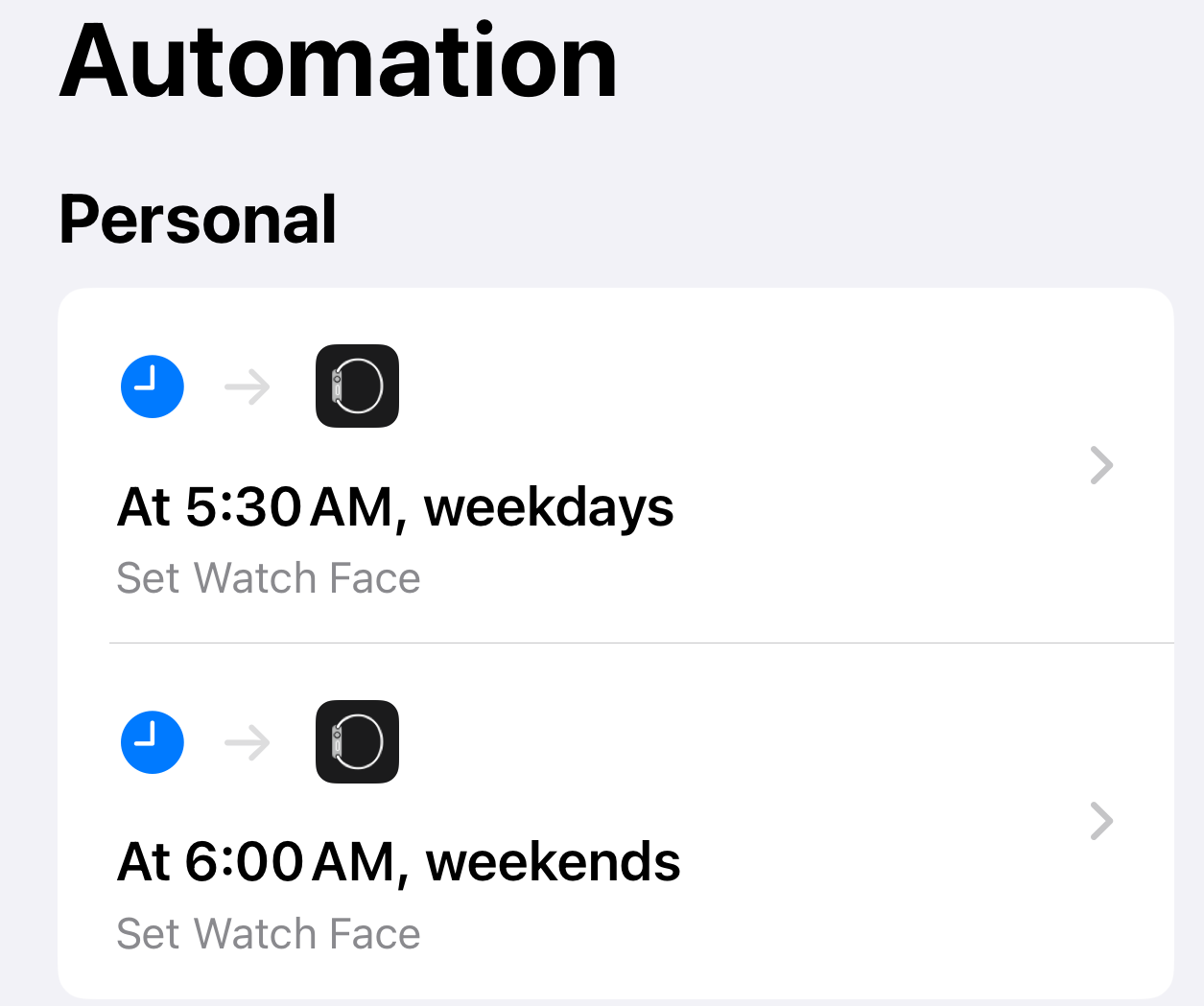
@margaretamartin was kind enough to give me instructions. Note: I just set up my shortcut but I will not know until this weekend if it works.
Set Watch Face with Shortcuts
You need to set an “Automation” in shortcuts using the time, and set it to run immediately so you don’t have to confirm it. Look for the Automation tab at the bottom of the main Shortcuts screen.
The final step is to set the watch face. In iOS17 I couldn’t find the watch shortcuts on the iPhone. There are some shortcuts, apps, and actions listed, but searching at this level didn’t bring up the Watch actions. To get to them, you need to tap “New Blank Automation”, which also gives suggestions — but at the bottom there’s another search bar. If you search for “watch” here, you should find the “set watch face” action that allows you to choose from your current set of faces. And that’s it!
1 Like
This works; I use a similar shortcut all the time. It’s great.
I’m in the camp that likes watchOS 10, although I’ll admit I miss the app switcher, which was handy. Now I don’t even know how to force quit an app that’s misbehaving. But in general, barring the fact that control center seems like it’s in an odd place, it’s great for me.
I often accidentally swipe the screen when drying my hands, etc, so control center would frequently be invoked accidentally. Now the first widgets screen gets invoked accidentally, which still stinks, but is a better alternative because the clock is still visible on it, and so the Watch can still serve its primary function when I glance at it in those situations.
1 Like
Use them for work to set a timer on and off which does toggl track timer as well as documents into a markdown document my arrival and exit from work. This ensures I have documentation for certain reimbursement I can always reference.
I liked to go between watch faces during day (one set up for communication as I have 2 phone numbers to one device) which was to the left, my primary face in middle for normal use, and to the right was a in depth calendar view.
Made it easy to have “normal” face in middle and then slide right/left to quickly reply or adjust schedule for meetings etc.
Now that I’ve lived with the watch update a few days I think I find the change to the menu mostly annoying. I just find it so inconvenient that the menu now reverts to the top of the list (if you have the app view in list) instead of staying over the app you last used. It wouldn’t be such an issue if we still had the dock, OR if Apple let us delete apps we didn’t want on the watch. I just want to use Timer and I have to scroll down multiple times a day
I set up some Timers as widgets, but I don’t find that instinctive either. I find it weird that you click on the icon for the timer in the widget (e.g. 5 mins), but then you have to click play to start the timer. I expect it to start right away and have been caught out a couple of times now with a timer not running as I’d expected.