System Settings > Menu bar > Allow in the Menu bar 
5 Likes
Or hold CMD and drag them off
2 Likes
Is there a trick for getting ‘screen capture’ in the menu bar? I still use a really old version of Snagit, but would like to move away from it to something more native on the Mac if that’s what you’re using. Thanks for any tips!
For the built in screen capture capability (Apple calls Screenshots), there are keyboard shortcuts. No need to waste menu space:

I can never remember them though
1 Like
I haven’t upgraded to Tahoe either, but I’ve had a ton of issues with both Bartender 5 and 6 on my Mac mini running Sequoia. I had the issues @lucaberta mentioned and ultimately decided it was time to remove Bartender after about a decade of using it. (I also had it running on a MacBook Air with fewer issues, but decided if I was going to replace it on one machine, I was going to replace it on them all.)
I’ve since switched to Ice and I’m enjoying how it simply works and ‘keeps to itself’ so to speak—it just seems to work. Fewer features, but I started using Bartender years ago for its core features, and those are there in Ice.
1 Like
You only need to remember the last one, ⇧⌘5, since it allows doing everything, plus videos.
2 Likes
I can’t remember them either (keyboard shortcuts) … I’m a mouse kinda guy (keyboard shortcuts I can remember are for copy/paste/quit and that’s about it)  Is there a way to build in that last command into a menu bar “shortcut” so I can just click on that to do my screenshots? Snagit makes it super easy with how it works (I just drag or hover over what I want to screenshot), but would love to use native functionality but with using a mouse to click that function.
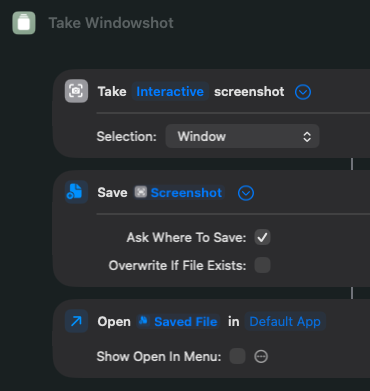
There is a Take Screenshot action in Shortcuts. So you can create a shortcut that will make a screenshot. The shortcut can then be placed in the menu bar.
I just tried it out:

2 Likes
I use CleanShotX. In answer to all of the other conversation that follows… I use the standard keyboard shortcuts for Capture Area and Capture Previous Area (I have mapped to the standard Apple shortcuts), and I use the menu for “all those other things” which might be like “Um, is there a scrolling capture option?” or “This is going to need a timer.”
So all you others… if you know all your shortcuts, good for you. Some of us don’t.
2 Likes
Thank you so much! This worked perfectly (though it took me a very long time figuring out how to add this shortcut to the Menu Bar under Tahoe but I used AI to help with that). Now it’s both in my menu bar and also in Control Center as a selectable action. I love how I now have .png files for screenshots instead of proprietary .snagproj files that I could never do anything with unless viewing directly in Snagit (conversion is a pain).
The only thing I miss is how Snagit made it easy to auto-select windows as I’m dragging my mouse over things I want to screenshot. With this method I have to manually select the area each time - no big deal but just one thing I think I will miss (unless I’m missing something similar with the native Mac actions).
I appreciate the tips! Thanks again (and I learned something new about using Shortcuts on the mac).
I am with you on this one @cwc, I have been testing Ice over the last few days and it indeed does all the things I was using Bartender for, and have completely dropped the ball on Bartender now.
Case is closed, your Honor! 

Bye, Luca
3 Likes
I figured this part out … there is an option called ‘Window’, so I duplicated the existing shortcut so that I can choose between ‘Window’ and ‘Custom’ selection depending on my needs. I also added an action to both shortcuts to auto-open in Preview once a screenshot is taken, completely replacing my workflow with Snagit  Now I don’t have to worry about compatibility issues and freezes that would occasionally happen.
1 Like
I would add that once you get the warning that Bartender is recording your screen, it doesn’t stop. I don’t know whether its the warning or if Bartender’s screen recording that stays indefinitely.
Lucky me, I’ve had no issues with Bartender in Sequoia.
Well, .1 has been out for a bit now. How are your updates going? (I just got a couple (yes two!) iPhone 17s free from our carrier as a long-term “loyalty” thank you, so I will likely be updating the M1 MBP to Tahoe soon, and you seem thorough and objective, so I’m curious about your update experience.)

Here in Europe companies only give discounts/gifts to new customers (and raise prises for existing ones) 
2 Likes
Usually same in US, but we’ve been with our carrier for 20+ years. Some companies do appreciate the loyalty I guess.
I’ve upgraded my devices to 26.1 and it’s gone fine except for slow performance issues on my watch. I haven’t upgraded my wife’s devices.
1 Like
I have been with the same mobile network since 2000 (02) they are now just hammering us with more price rises. I wouldn’t expect a new phone from them as I only buy airtime now, but some recognition would be nice  . Looking at some other options now.
Do you know you’ve got until this weekend to terminate your contract with them due to the significant price rises?